Help Center - View Logs
View Logs
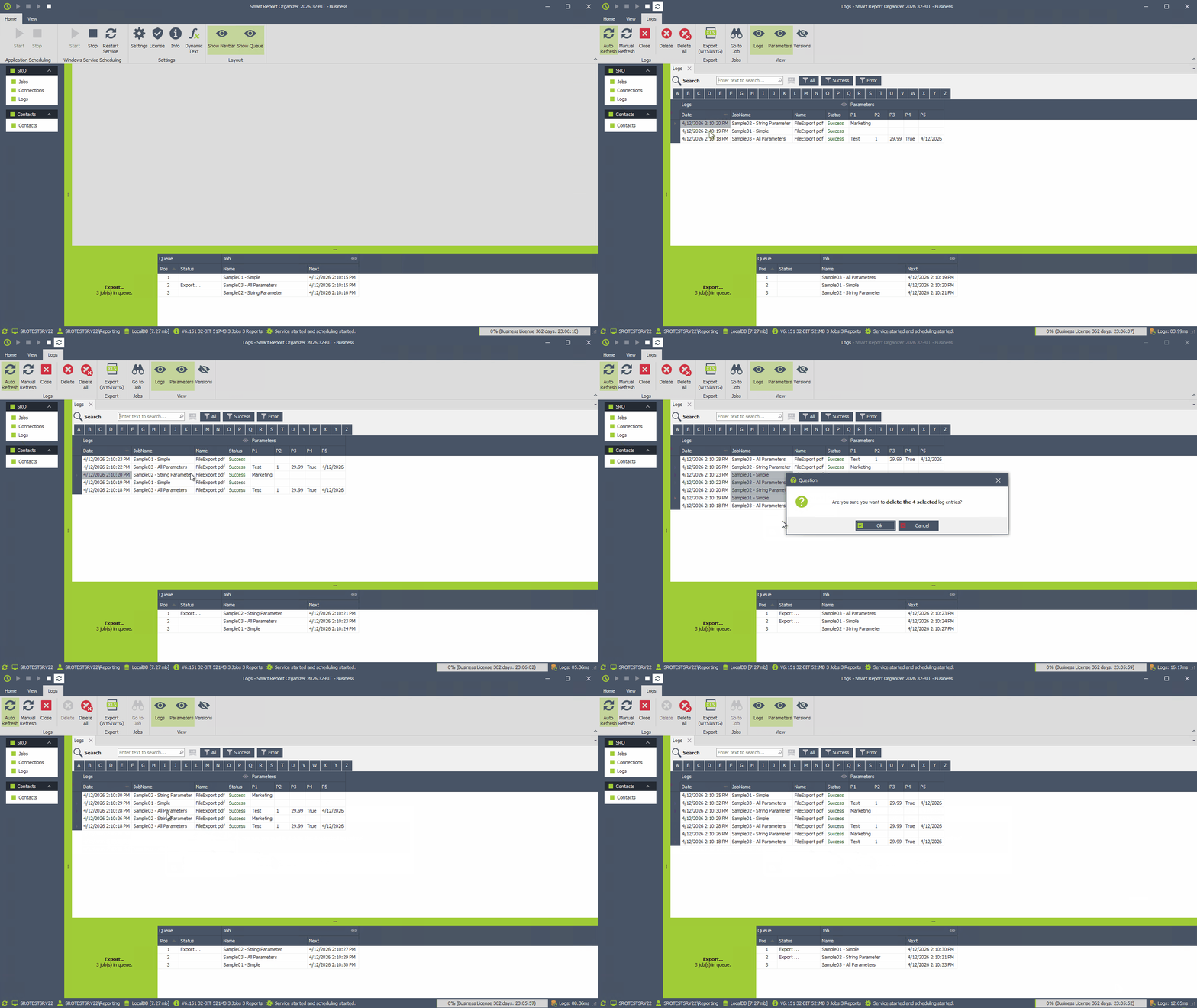
The log window provides a real-time overview of all job executions in Smart Report Organizer.
It allows you to monitor job status, review execution details, and quickly identify errors.
- Each row represents a single job execution.
- Logs include status, execution time, and parameter values.
- Failed jobs are clearly highlighted with error messages.
Notes:
- Auto Refresh: Displays the latest 1000 log entries and updates automatically every second.
- Manual Refresh: Loads all available log entries manually.
- Delete: Deletes the selected log entry.
- Delete All: Deletes all log entries.
- Export (WYSIWYG): Exports the visible log data to excel.
- Go to Job: Opens the corresponding job configuration.
How to Analyze Logs
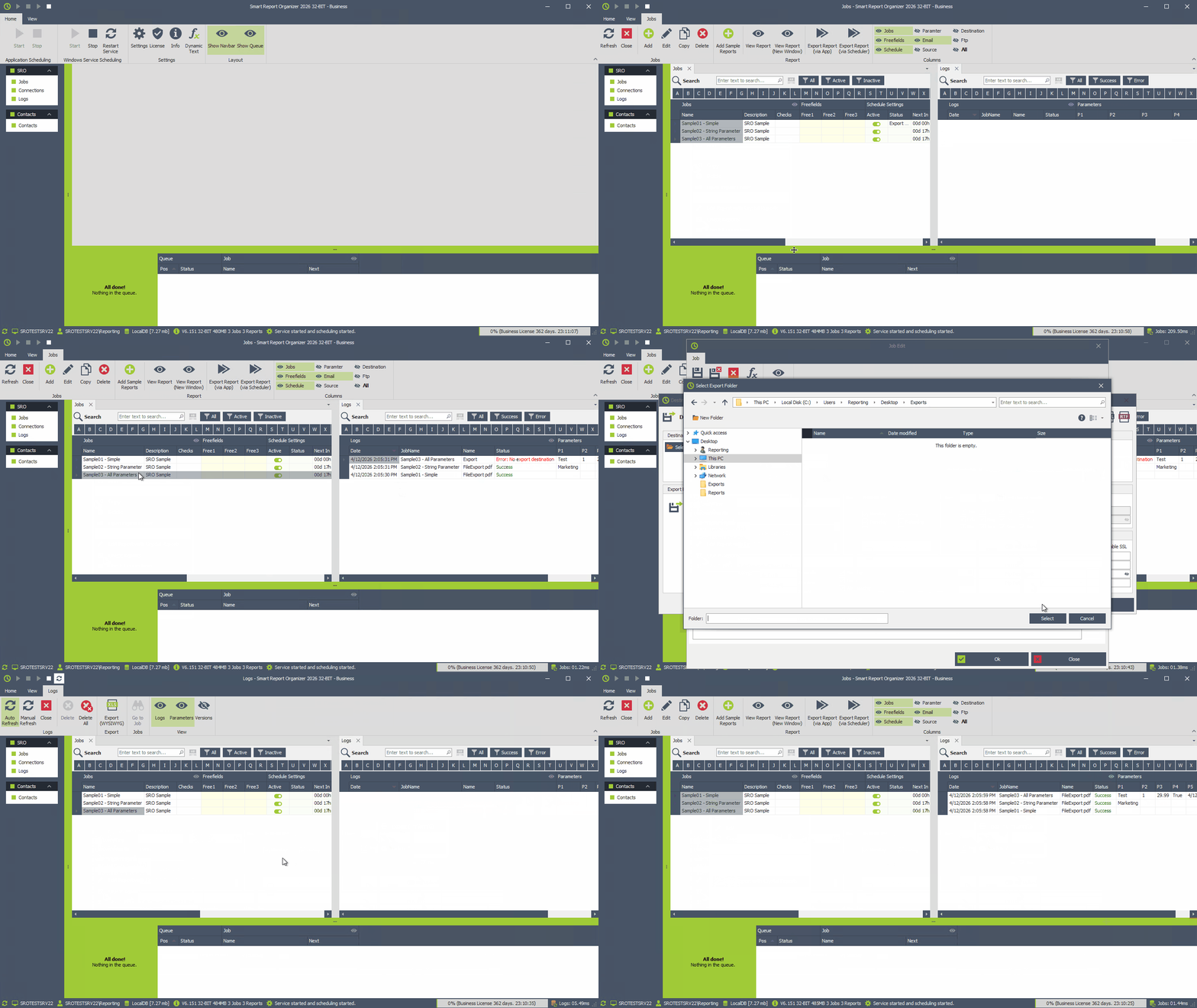
In this example, a job fails with the error "Error: No export destination". We open the job configuration using "Go to Job", fix the missing export destination, delete the failed log entries, and run the job again successfully.
Auto Refresh vs Manual Refresh
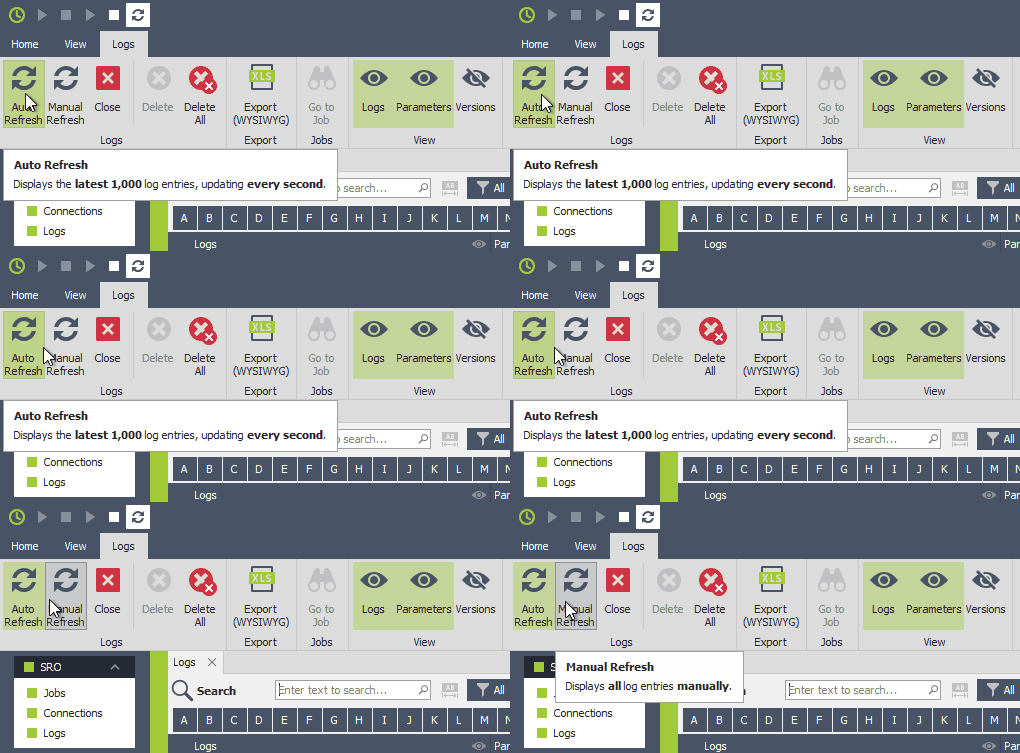
- Auto Refresh: Displays the latest 1000 log entries, update every second.
- Manual Refresh: Displays all log entries manually.
Common Use Cases
- Monitor scheduled jobs in real time.
- Verify successful report execution.
- Identify export issues.
- Analyze parameter values used in a job run.
Please note:
The log window is a monitoring and diagnostic tool.
It helps you understand what happened during job execution but does not automatically resolve errors.
Always verify job configuration, parameters, and destinations if issues occur.
