Help Center - PDF History
PDF History
PDF History gives you quick access to previously generated PDF files for each report job.
Browse older and newer report results directly in the integrated PDF viewer without having to locate and open the PDF files manually.
Note: PDF History is only available for report jobs that generate a PDF files.
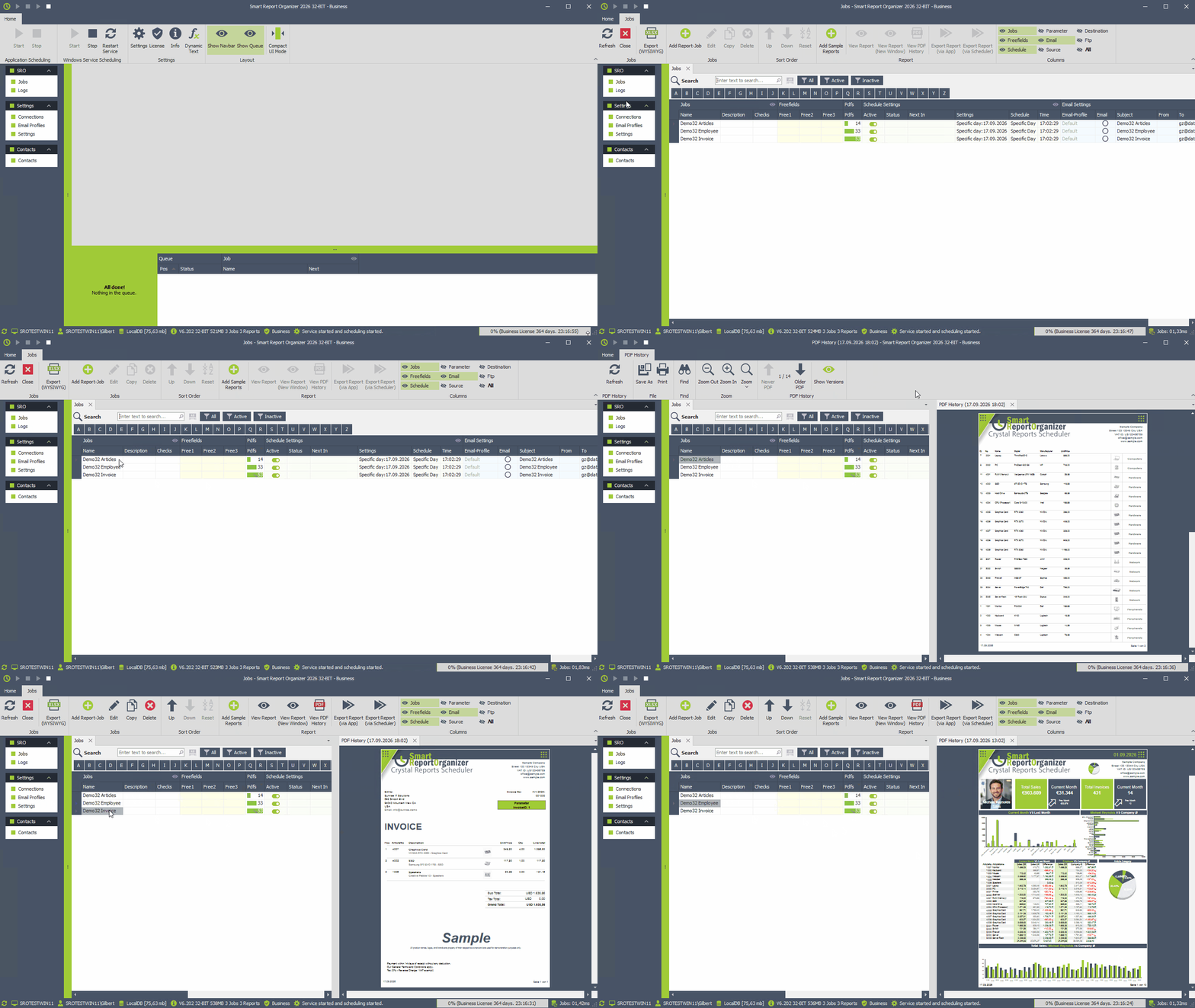
Show latest PDF version
- Select a report job
- Click the [View PDF History] button
- The latest available PDF is displayed automatically
Browse PDF versions
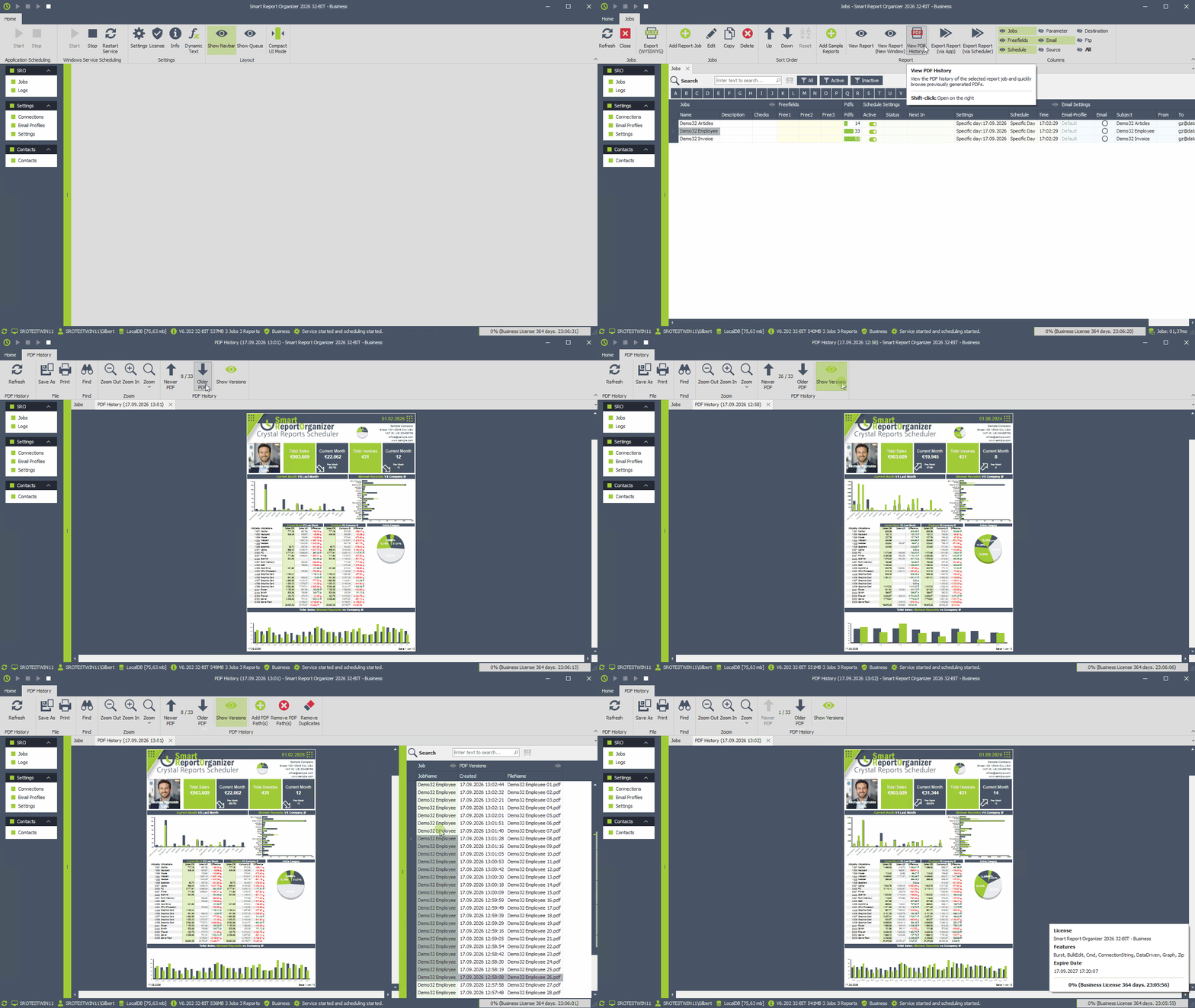
- Use [Newer PDF] and [Older PDF] to quickly browse through the PDF History of the selected report job.
The version indicator shows your current position in the history, with version 1 being the newest PDF. -
Click [Show Versions] to display the complete list of PDF files associated with the report job.
Select any entry in the list to immediately display the corresponding PDF.
For even faster navigation, you can use the mouse wheel
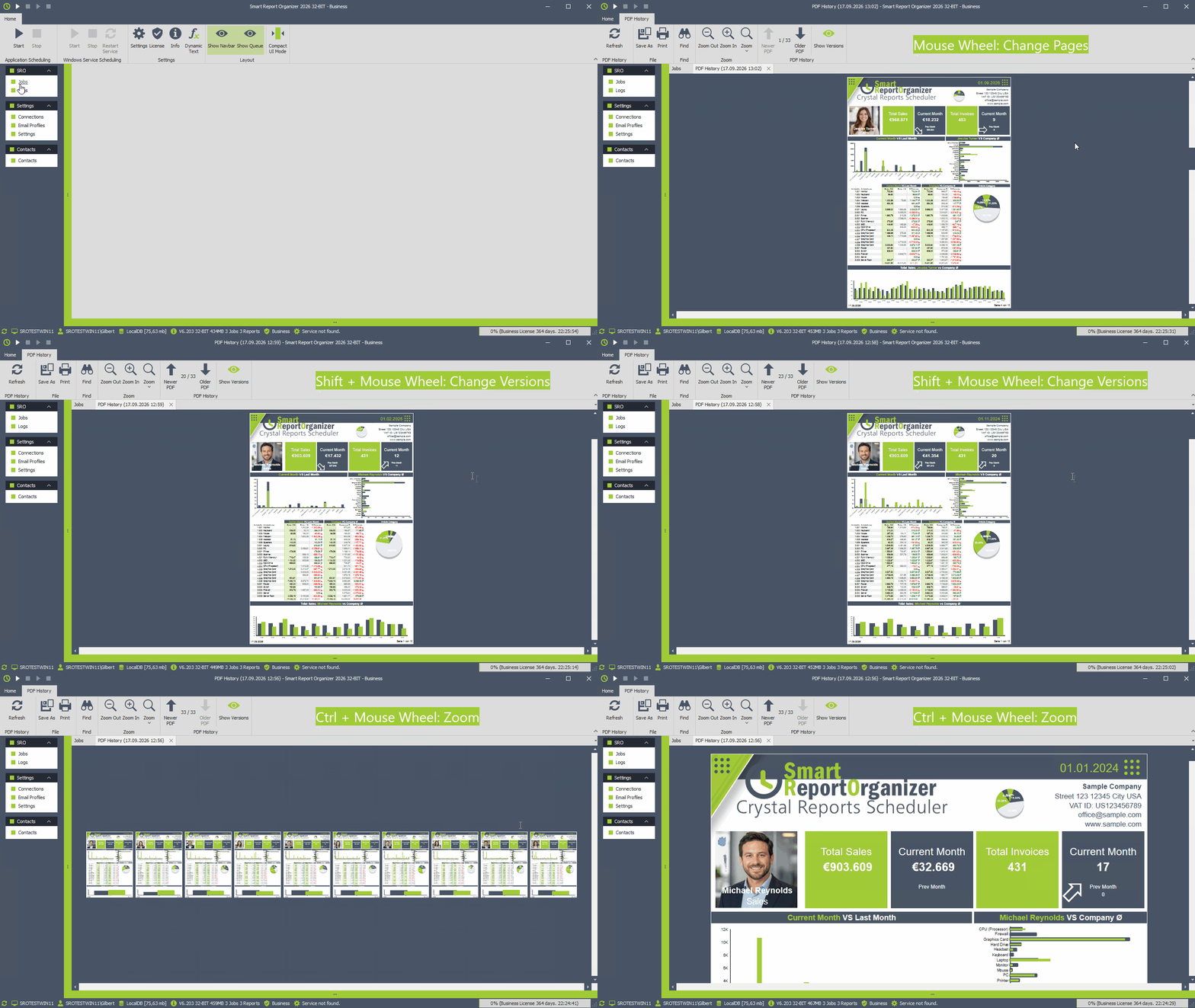
- Mouse Wheel – navigate between pages of the current PDF
- Shift + Mouse Wheel – switch between newer and older PDF versions
- Ctrl + Mouse Wheel – zoom in or out
Manage PDF History
When the PDF version list is visible, additional options are available to manage the history:
- [Add PDF Path(s)] – add existing PDF files to the history manually
-
[Refresh File Infos] – refresh file information such as creation date, file hash, and whether the file still exists.
Entries for PDF files that no longer exist are automatically removed from the history. - [Remove PDF Path(s)] – remove selected PDF references from the history
- [Remove Duplicates] – remove duplicate PDF references from the history
Your PDF files remain untouched
Important: PDF History only stores references to your PDF files. Removing an entry from the PDF History never deletes or modifies the original PDF file.
