Help Center - FTP / FTPS Settings
FTP / FTPS Settings
Use FTP to automatically upload exported reports to a server. Make sure your connection works (e.g. with FileZilla) before configuring this feature.
- SRO supports FTP and FTPS (FTP over SSL), but does not support SFTP (SSH-based).
- Test your FTP connection with a tool like FileZilla before configuring SRO.
Setup Instructions
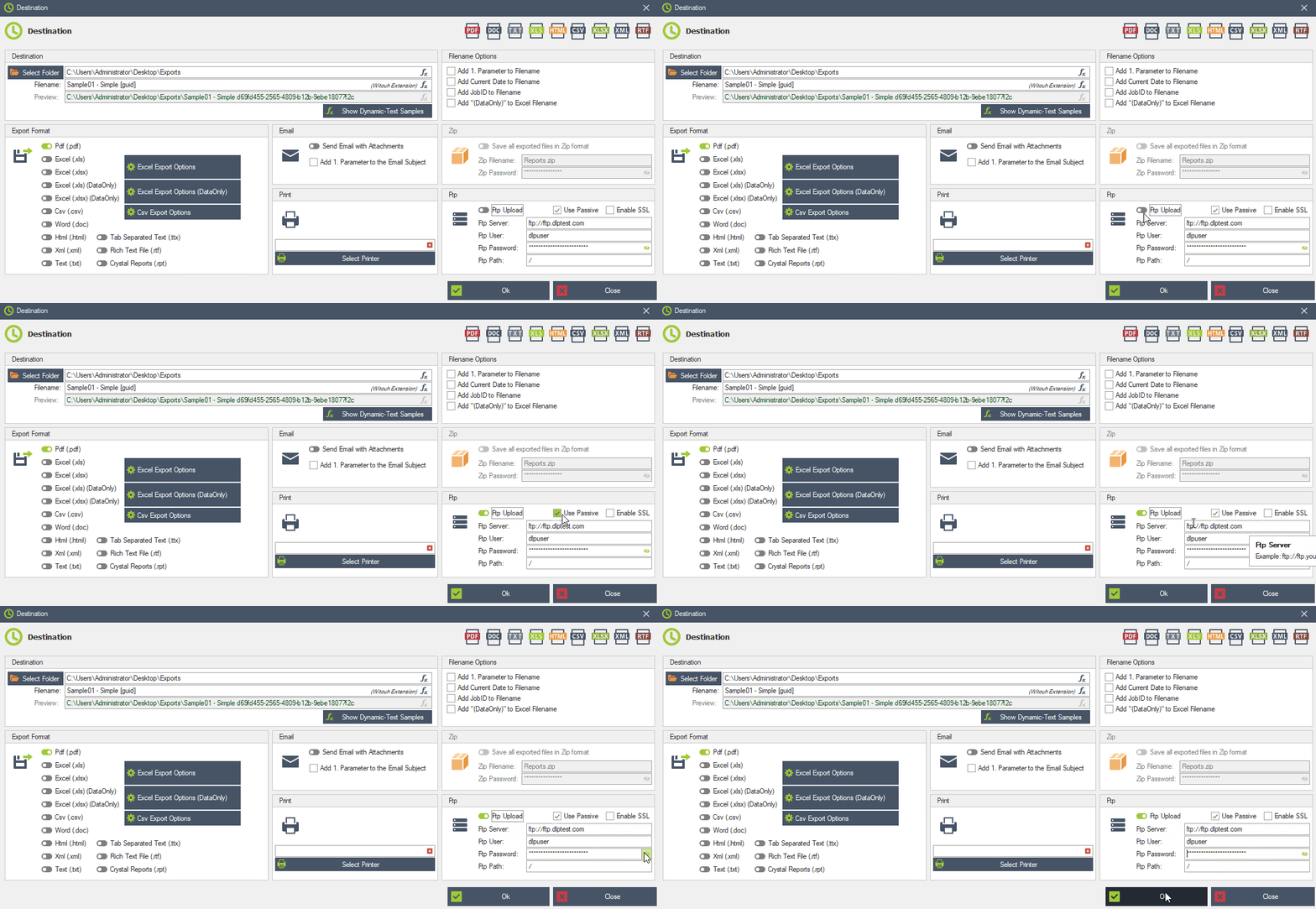
- FTP Upload: Enables automatic upload of exported files.
- Passive Mode: Enable this if you have connection issues. Most servers require passive mode.
- Enable SSL: Enable this to use a secure connection (FTPS). Recommended if supported by your server.
- FTP Server: Enter your server address including the prefix ftp:// (e.g. ftp://example.com). This format is required by SRO.
- Username: Your FTP login username.
- Password: Your FTP login password.
-
FTP Path:
- / → Upload to root directory
- /subfolder/ → Upload to a specific folder
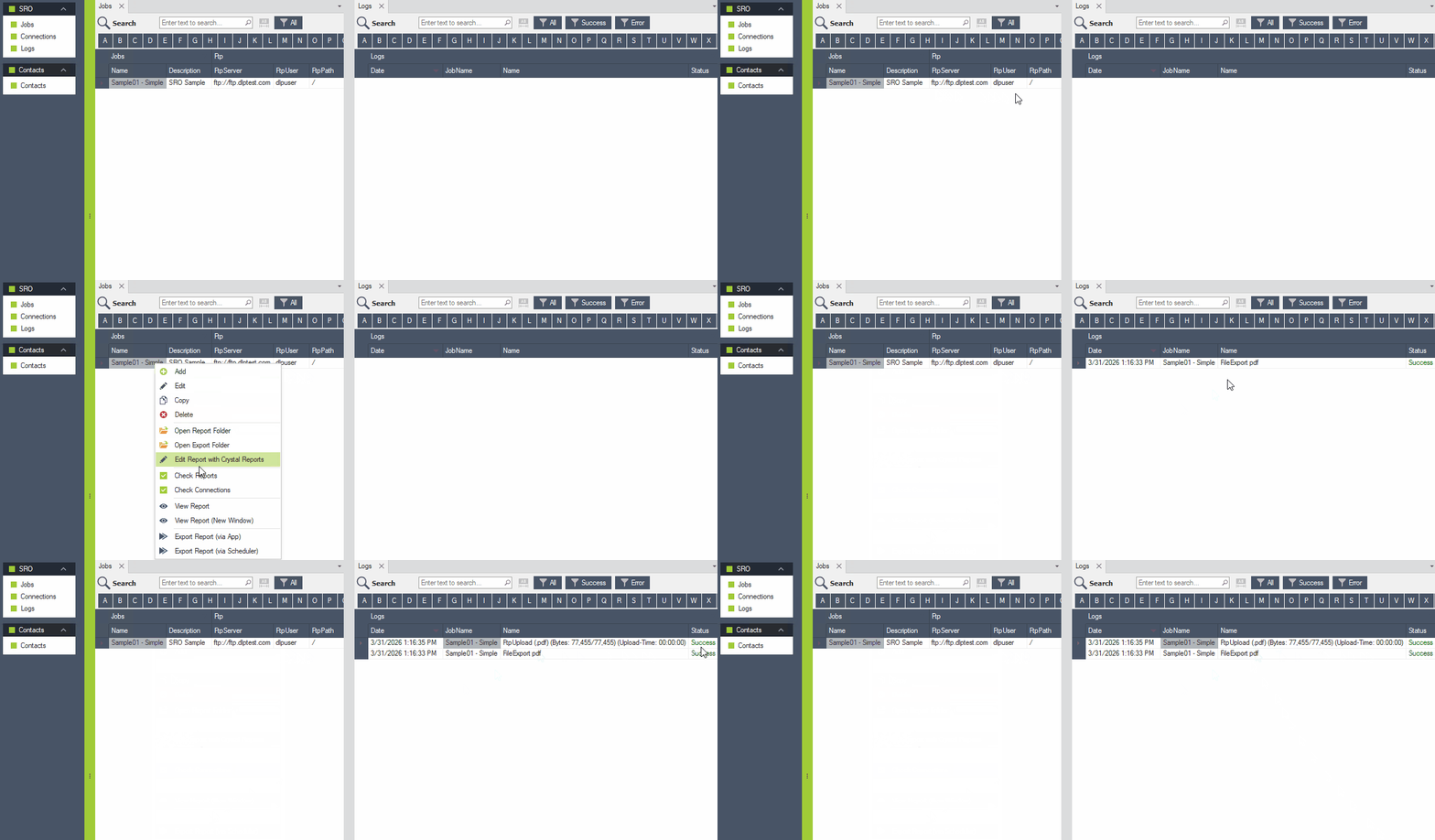
Example: FTP Upload in Action
Common Issues
- Connection fails → Check server address and credentials.
- Timeout or no connection → Try enabling Passive Mode.
- Upload fails → Check folder path and permissions.
Please note:
SRO only provides the FTP upload functionality. A working FTP/FTPS server, valid access credentials, and the correct server configuration are required and must be provided by your IT infrastructure.
If you are unsure about your FTP settings or encounter connection issues, please contact your system administrator or IT department. They can provide the required server details and verify that your FTP access is correctly configured.
