Help Center - Email Profiles
Email Profiles
Email Profiles store all settings required to send emails from Smart Report Organizer. You can create as many Email Profiles as required (for example SMTP, Microsoft 365 or Google Gmail), define one profile as the default and optionally use a different profile for individual jobs.
Creating an Email Profile
- Open Settings → Email Profiles.
- Click Add.
- Enter a profile name.
- Select the desired email provider.
- Configure the required authentication.
- Save the profile.
- Optionally set the profile as the default.
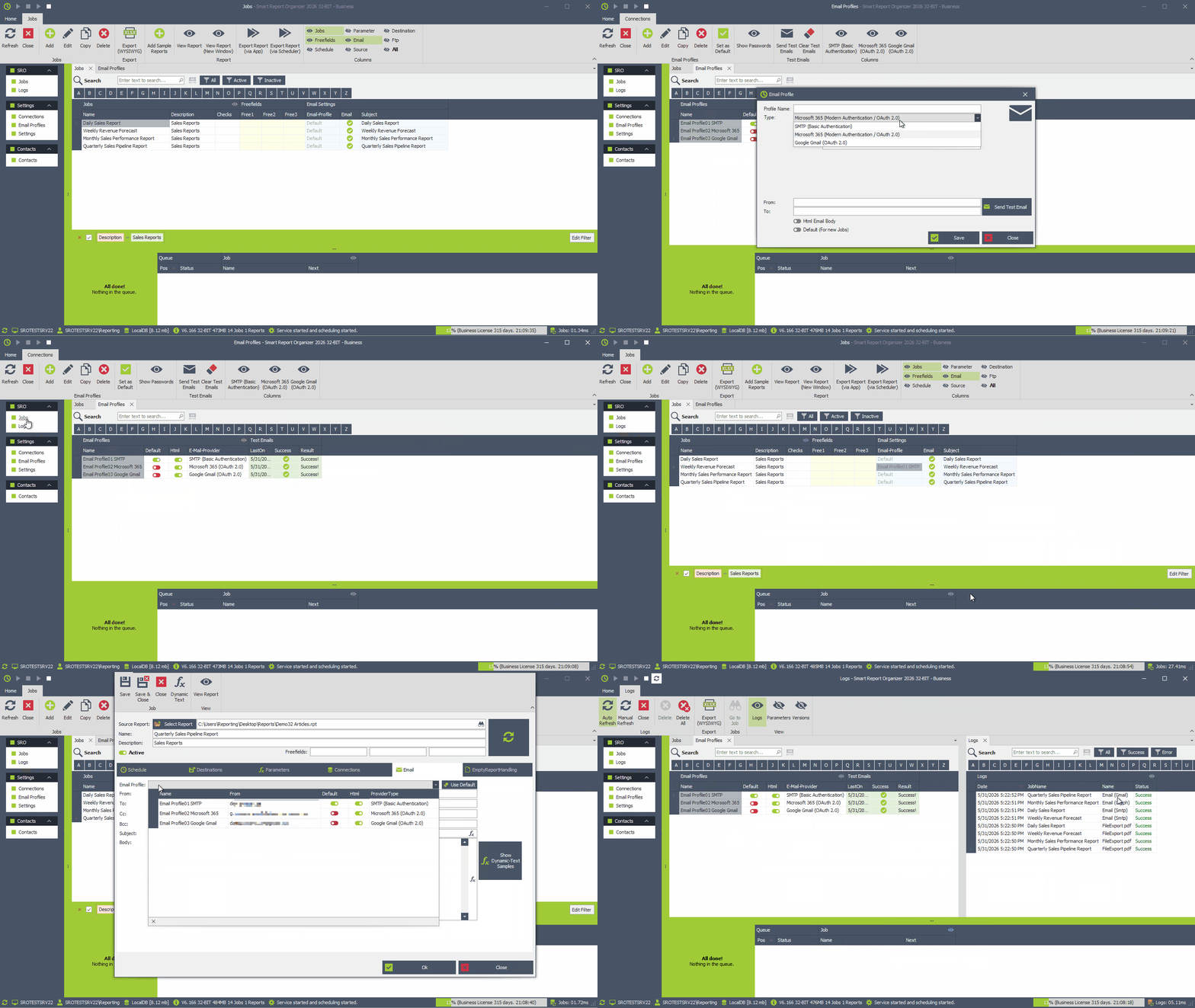
SMTP (Basic Authentication)
Use this option if your mail server supports SMTP username/password authentication.
- Select SMTP (Basic Authentication).
- Enter your SMTP server, username, password and port.
- Enable SSL/TLS if required by your mail provider.
- Save the profile.
- Send a test email.
Microsoft 365 (Modern Authentication / OAuth 2.0)
Microsoft 365 uses OAuth 2.0 authentication and therefore requires a Microsoft Entra ID App Registration.
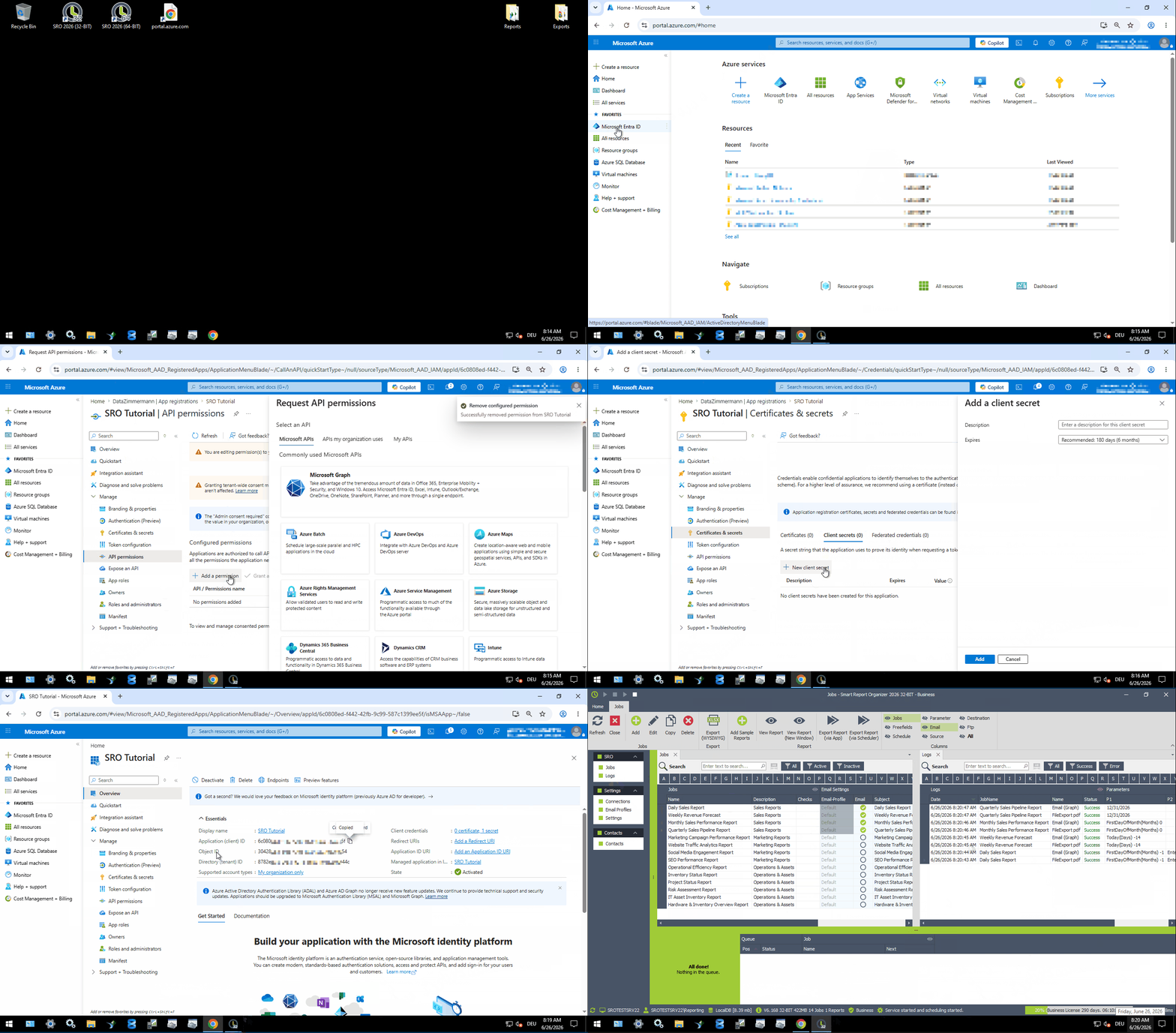
The following video demonstrates one possible Azure configuration that can be used with Smart Report Organizer. Depending on your organization's security policies, your IT department may choose a different configuration, permissions or additional restrictions.
- Create a new Email Profile.
- Select Microsoft 365 (Modern Authentication / OAuth 2.0).
- Create an App Registration in the Microsoft Azure Portal.
- Configure the required API permissions (for example Mail.Send) and grant admin consent if required.
- Create a Client Secret.
-
Copy the following values into Smart Report Organizer:
- Tenant ID
- Client ID
- Client Secret Use the Azure Client Secret Value, not the Secret ID.
- Save the profile.
- Send a test email.
Example
Please note
The Azure configuration shown in the video is intended as an example only.
Smart Report Organizer requires a valid Tenant ID, Client ID and Client Secret. The Microsoft Entra ID application must also be configured with the permissions required to send emails (for example Mail.Send).
How the Microsoft Entra ID application is configured, secured and managed is entirely the responsibility of your IT department and may vary depending on your organization's security policies.
Support for Microsoft Entra ID, Azure configuration, Microsoft 365 permissions and organizational security policies is outside the scope of Smart Report Organizer support.
Google Gmail (OAuth 2.0)
Google Gmail uses OAuth 2.0 authentication instead of a password.
- Create a new Email Profile.
- Select Google Gmail (OAuth 2.0).
- Enter your Client ID.
- Enter your Client Secret.
- Click Connect now... to authorize Smart Report Organizer.
- Sign in to your Google account.
- The Refresh Token will be stored automatically.
- Save the profile.
- Send a test email.
Default Email Profile
Exactly one Email Profile must always be designated as the default profile.
- Jobs with Use Default enabled automatically use the default Email Profile.
- You can change the default profile at any time.
- A default Email Profile cannot be deleted until another profile has been set as the default.
Using Email Profiles in Jobs
Every job can either use the default Email Profile or a dedicated profile.
- Enable Use Default to automatically use the current default Email Profile.
- Disable Use Default to explicitly select another Email Profile.
Testing Email Profiles
Email Profiles can be tested independently of your jobs.
- Select one or more Email Profiles.
- Click Send Test Emails.
- SRO sends a test email using every selected profile.
- The recipient, date/time, success status and result are stored for every test.
This feature is especially useful after password changes, server migrations or configuration updates.
Sending Limits
Many email providers limit the number of emails that can be sent within a certain period of time. These limits are defined by your email provider and may vary depending on your subscription or organization.
Please note:
Smart Report Organizer provides the email client only.
The configuration of SMTP servers, Microsoft 365 or Google accounts is the responsibility of your IT administrator.
If you experience authentication, permission or connection problems, please contact your IT department.
